The Weekly Report Prompt That My Boss Thinks I Spend Hours On
Every Friday afternoon, I send my manager a weekly status report. It’s structured, data-driven, and exactly the kind of thing that makes you look like you have your act together. My manager once told me he forwards it to his boss because “it’s the clearest update on the team.” The secret? A single weekly report prompt that does all the heavy lifting.
Here’s my confession: I spend about 4 minutes on it.
Not because I’m cutting corners. Because I built a single prompt — using the RCTF framework I shared a few weeks ago — that turns my messy week of Slack messages, meeting notes, and half-finished to-do lists into a polished, executive-ready report. Every. Single. Week.
Today I’m breaking down that exact prompt, line by line, so you can steal it and adapt it for your own role. This is Prompt of the Week — where we take one high-value prompt, dissect it using RCTF, and show you exactly why it works.
The Weekly Report Prompt (Copy-Paste Ready)
Here’s the full prompt. Copy it, paste it into Claude or ChatGPT, and replace the bracketed sections with your own details. Then I’ll explain why each part matters.
You are a senior business analyst who writes executive-ready weekly status reports. Your reports are concise, data-driven, and always highlight decisions that need attention. You default to bullet points over paragraphs and never use filler language.

Here is the context for this week's report:
- My role: [Your role, e.g., "Senior Product Manager, Payments Team"]
- My manager cares about: [Their top 2-3 priorities, e.g., "progress against Q1 OKRs, blockers that affect the release timeline, and cross-team dependencies with the Platform team"]
- Reporting period: [Date range, e.g., "March 10-14, 2026"]

Here are my raw notes from this week:
[Paste your notes, Slack highlights, meeting takeaways, completed tasks, blockers — dump everything here, don't worry about formatting]

Task: Synthesize my raw inputs into a weekly status report. Group updates by OKR or workstream. Flag blockers with severity (🔴 red = blocked, 🟡 yellow = at risk, 🟢 green = on track). If any items need my manager's decision or escalation, put them in a dedicated "Decisions Needed" section at the end.

Format the report as:
1. Executive Summary (3 bullet points — the 3 most important things from this week)
2. OKR / Workstream Progress (table with columns: OKR, Status, Key Update, Next Step)
3. Blockers (severity-tagged, one line each)
4. Wins (2-3 bullet points of things that went well)
5. Decisions Needed (only if applicable — what decision, why it's urgent, recommended action)

Keep the total report under 400 words. Use my company's internal tone — direct, no corporate fluff, assume the reader is busy.
The RCTF Breakdown: Why Each Part Matters
If you’ve read my RCTF framework post, you know the structure: Role → Context → Task → Format. Let’s look at how each letter does heavy lifting in this prompt.
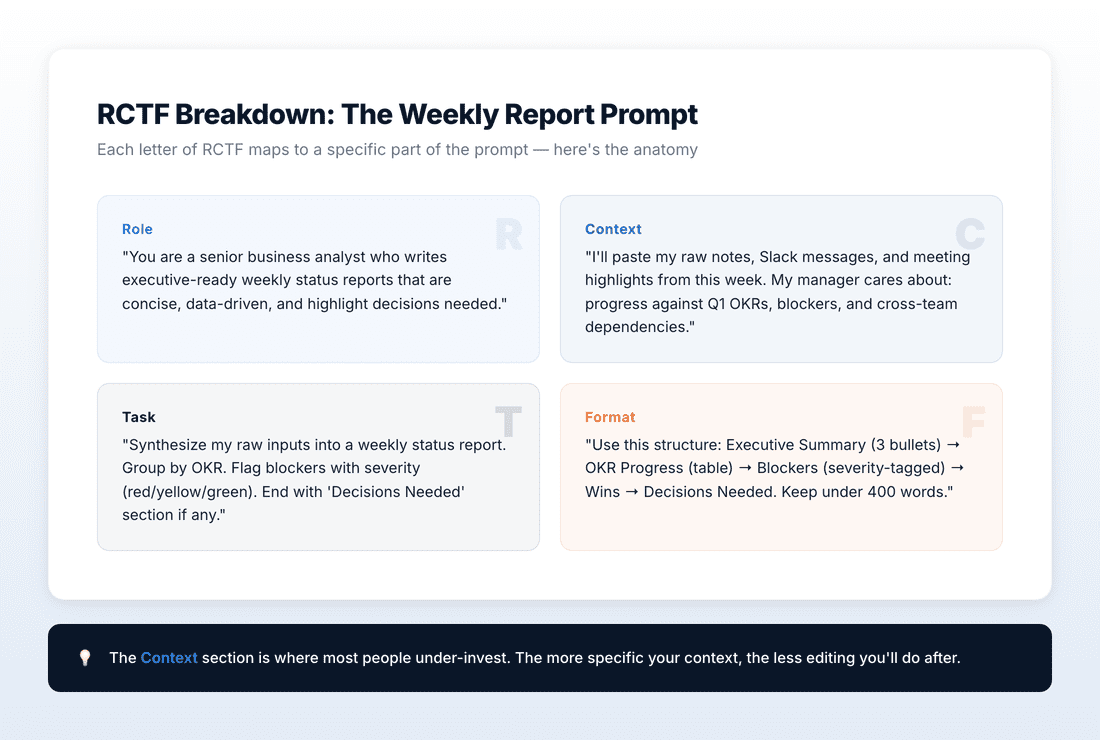
R — Role: “Senior business analyst who writes executive-ready reports”
This isn’t just a job title. It’s a behavioral instruction. By saying “executive-ready,” you’re telling the AI to write for a senior audience — no hand-holding, no over-explaining, no fluff. The phrase “concise, data-driven” reinforces that. And “highlight decisions that need attention” gives the AI a specific editorial lens: don’t just summarize — prioritize.
Why it works: Without a Role, the AI defaults to a generic helpful assistant tone — which sounds like a press release. With this Role, it writes like someone who’s been doing corporate reporting for a decade.
C — Context: Your role, your manager’s priorities, your raw notes
This is the section most people skip — and it’s the reason their output is mediocre. Context is everything. By telling the AI what your manager cares about, you’re essentially telling it which information to lead with and which to bury.
The raw notes section is where you dump everything: Slack messages, meeting highlights, completed Jira tickets, random thoughts. Don’t clean it up. Don’t organize it. That’s the AI’s job. The messier the input, the more the AI earns its keep.
Why it works: Generic context = generic output. When you tell the AI “my manager cares about Q1 OKRs and cross-team dependencies,” the report leads with OKR progress and calls out dependency risks. Without that context, it would just list things chronologically.
T — Task: Synthesize, group, flag, and separate decisions
The Task section is doing four things at once: (1) synthesize raw notes into coherent updates, (2) group them by OKR so the report has logical structure, (3) flag blockers with severity so they jump out visually, and (4) separate decisions that need action from regular updates.
Why it works: Each instruction eliminates one round of editing you’d otherwise do manually. Without “group by OKR,” you’d reorganize. If you left out “flag blockers with severity,” you’d add the tags yourself. Similarly, skipping the “Decisions Needed section” means you’d restructure the ending. The Task section is where you front-load all your editing preferences.
F — Format: Executive Summary → Table → Blockers → Wins → Decisions
The Format is the skeleton. By specifying a numbered structure with exact section names, you get the same layout every single week. Your manager learns where to look for what. The table format for OKR progress is especially powerful — tables force the AI to be precise and prevent the “wall of text” problem.
The “under 400 words” constraint is critical. Without it, the AI will happily write 800 words. Your manager doesn’t have time for 800 words. Constraints breed quality.
Why it works: Format removes subjectivity from the output. The AI can’t ramble because the structure won’t allow it. Every section has a name, a purpose, and an implicit length.
What You’ll Actually Get: Before vs. After
Let’s be real about the difference this makes. Here’s what happens when you use a generic “write me a weekly report” prompt vs. the RCTF version.
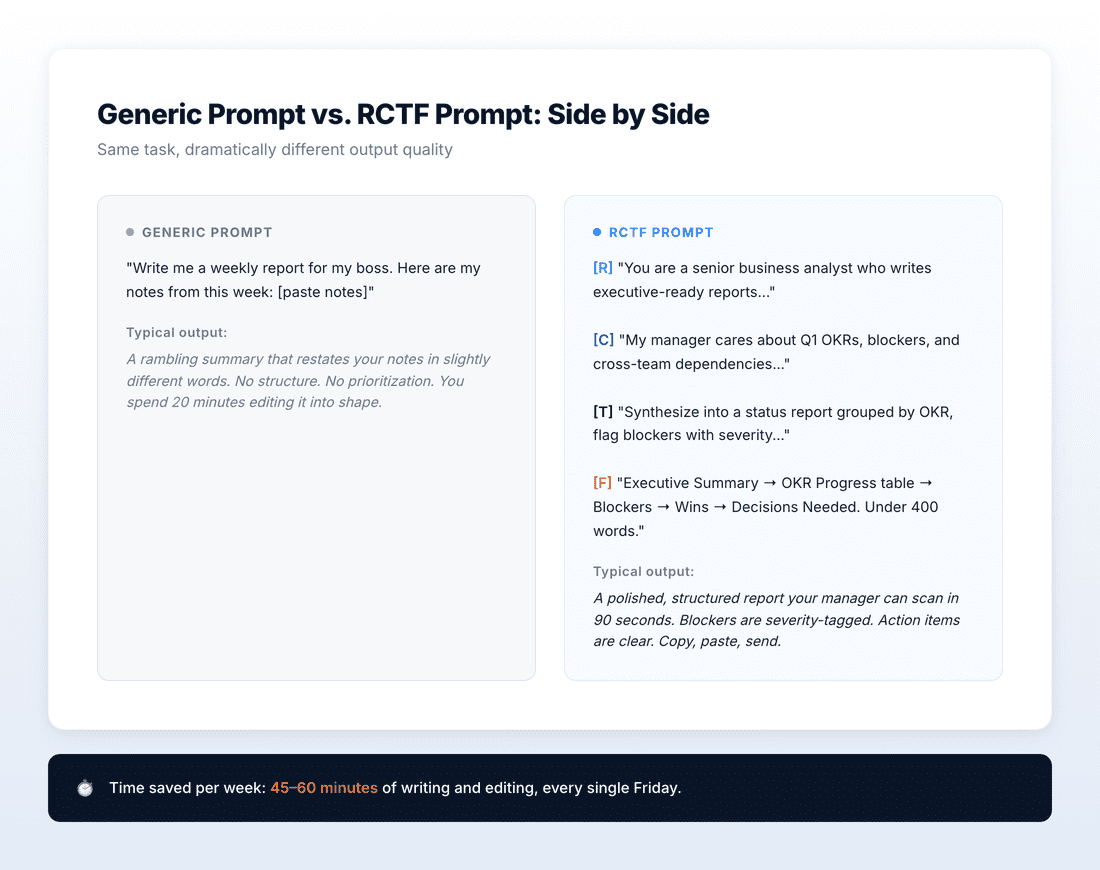
On one hand, the generic prompt gives you raw material you still need to shape. The RCTF prompt gives you a finished product you can send in under a minute. That’s the difference between “AI-assisted” and “AI-automated.”
How to Make This Weekly Report Prompt Yours
The prompt above is my version. Your version should be different — because your role, your manager, and your company are different. Here are five specific tweaks to make it fit your world.

The most important customization? Your manager’s actual priorities. For instance, go look at the last three 1:1 agendas. What does your manager always ask about first? Put that in the Context section. The AI will mirror their priorities back to them in the report — which is exactly what makes it feel like you spent hours on it.
The Meta-Lesson: Prompts Are Compound Interest
Here’s what I want you to take away beyond the specific prompt:
The best prompts aren’t one-offs. They’re templates you use repeatedly and refine over time.
This weekly report prompt started rough. The first version gave me decent output that needed 10 minutes of editing. First, I tweaked the Role. Then I refined the Format. Eventually, I added the “Decisions Needed” section after my manager mentioned he wanted that.. After three iterations, the output went from “decent” to “ready to send.” Now it’s been stable for months.
That’s the real skill with AI: not writing brilliant one-shot prompts, but building a library of reusable prompts that get better every time you use them. It compounds. One good prompt saves you an hour a week. Ten good prompts save you a full workday. That’s where the leverage is.
Your Weekly Report Prompt Action Items
1. Copy the prompt above. Right now. Paste it into Claude or ChatGPT.
2. Fill in the brackets. Your role, your manager’s priorities, this week’s raw notes.
3. Run it. See what comes out. It’ll be 80% there on the first try.
4. Refine once. Note what you’d change. Add that instruction to the prompt. Run it again next week.
5. Save it as a template. IIn Claude, create a Project with this prompt as instructions. For ChatGPT, save it as a Custom GPT. Or simply pin it in your notes app.it. As a result, next Friday, you’ll spend 4 minutes instead of 45.
That’s Prompt of the Week. One prompt, broken down with RCTF, ready to use. See you next Monday.



One Comment
Comments are closed.